
Integrations & API Keys
The integrations & API keys settings allow you manage your app's integrations in one place
API Keys
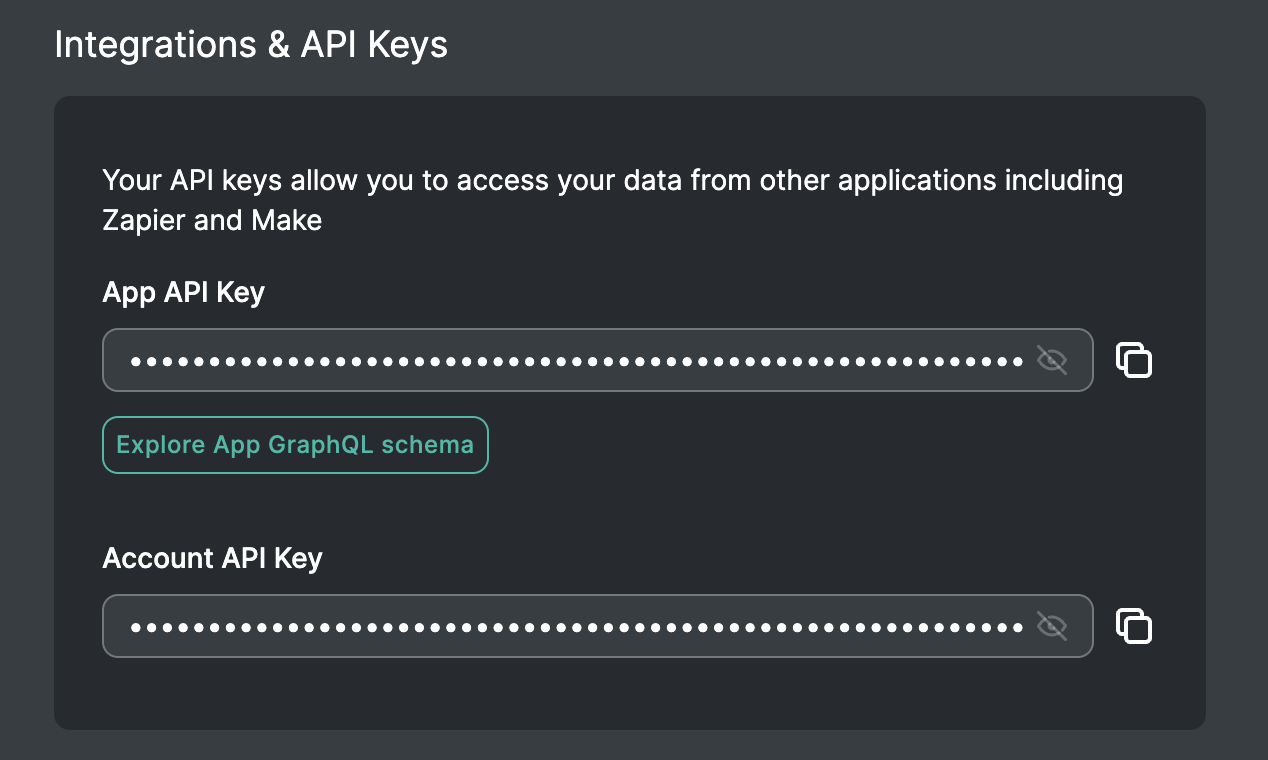
You can find your API keys, and Explore your Rowmesh App API from the Integrations & API Keys settings.
To use Zapier or Make with Rowmesh you will need to add both the App API key and the Account API key to Zapier/Make during the connection process.
If you want to use the Rowmesh data API you will also need your App API key.
The API key is associated with the account you're currently logged into. Deactivating or deleting that user account will invalidate any API keys associated with the account. You can visit this link to view your Integrations & API Keys: https://portals.rowmesh.com/~/_/settings/integrations
MCP Integration
The MCP (Model Context Protocol) server lets you connect AI assistants like Claude Desktop, Cursor, and Windsurf directly to your Rowmesh data. MCP is account-wide rather than per-app — a single OAuth sign-in covers every Rowmesh app where you're a data admin, so there is no per-app MCP key to copy from this page. See the MCP Integration guide for the URL and step-by-step client setup.
MCP IntegrationApp Integrations
The App integrations section lists all of the 3rd Party tools and apps that you can integrate with Rowmesh.
From this page you can start the process of setting up those integrations or reconnecting previously setup integrations.
For more information on Rowmesh's integrations see our Data Sources and Integrations sections
Intro to Data & TablesZapier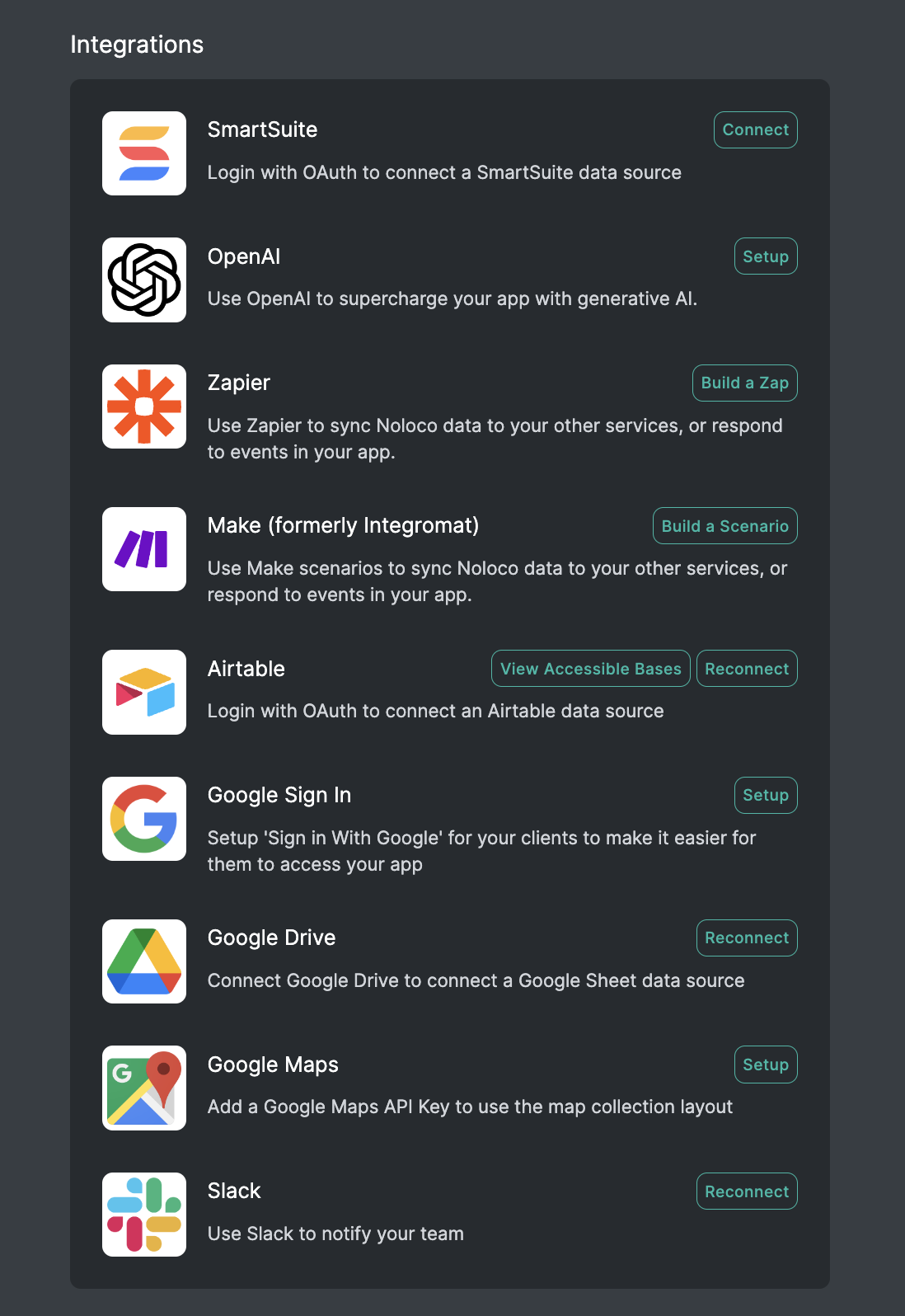
Last updated
Was this helpful?