
MCP Integration
Connect AI agents like Claude, Cursor, and Windsurf to your Rowmesh app data using the Model Context Protocol (MCP)
The Rowmesh MCP (Model Context Protocol) server lets AI assistants list your tables, read records, and create, update, or delete entries through natural language.
One MCP URL covers every Rowmesh app where you're a data admin:
https://api.core.rowmesh.com/mcpThere's no API key and no per-app URL. The first time a client calls the server, a browser window opens for you to sign in and pick which apps the client can access and whether it gets read or read + write on each.
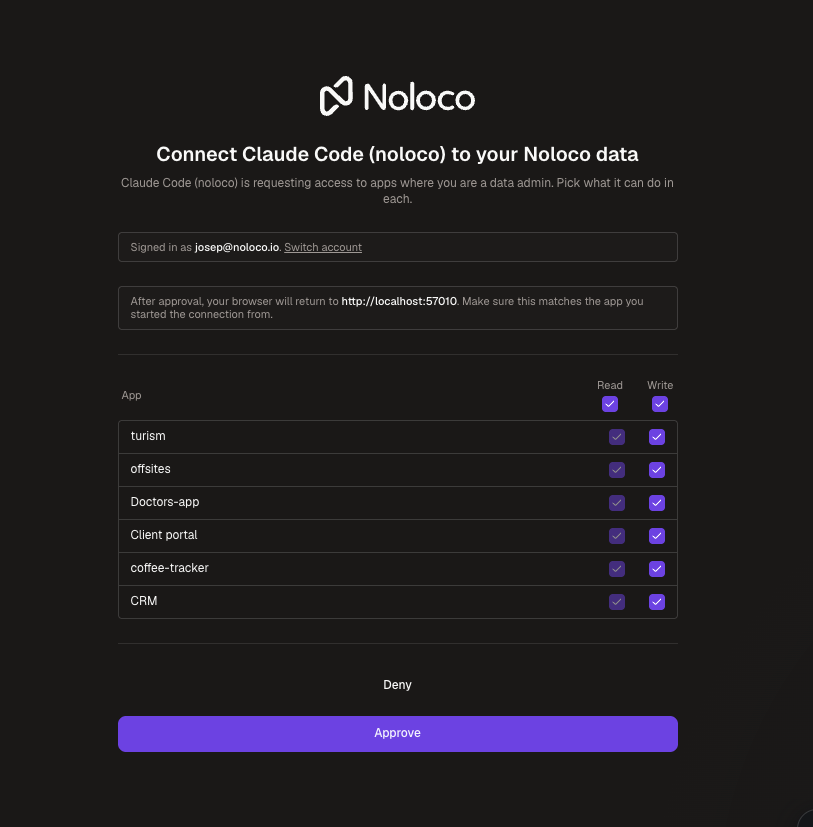
Connecting an AI Client
The Rowmesh MCP server uses with OAuth, which all major MCP clients support. Pick your client:




Claude Desktop
The quickest route is one click: . That link opens the Rowmesh connector in Claude's directory — click Connect, and the Rowmesh consent screen opens in your browser.
You can also find it from Settings → Connectors: browse the directory, search for Rowmesh, and click Connect.
Claude Code
Run:
The next time you start a session, Claude Code opens the consent screen in your browser.
Cursor & Windsurf
Open the MCP settings panel and add:
The first tool call opens the consent screen.
ChatGPT
ChatGPT has no one-click link, so there are three short steps: check your plan, turn on developer mode, then create the plugin.
1. Check your plan
Custom MCP plugins need a Plus, Pro, Business, Enterprise, or Education plan, and you have to set them up in the ChatGPT web app — the mobile apps can't create them. Once created, the plugin works everywhere you use ChatGPT.
2. Turn on developer mode
In the ChatGPT web app, go to Settings → Apps → Advanced settings and switch on Developer mode.
3. Create the plugin
Developer mode adds the option to create your own plugin. You're in the right place when the dialog is titled New Plugin. Fill it in like this:
Icon
Optional — skip it. PNG only, 256 × 256 px or larger, max 10 KB.
Name
Rowmesh
Description
Access to my Rowmesh app data. Use this to list my Rowmesh projects and their tables, read table schemas, and read, create, update, or delete records in those tables.
Connection
Leave it on Server URL — not Tunnel — and enter https://api.core.rowmesh.com/mcp, including the /mcp path
Authentication
OAuth
Although the Description is marked optional, it's worth filling in. ChatGPT reads it when deciding whether a question calls for Rowmesh, so a vague one means the model skips the plugin when you wanted it. Feel free to make it more specific to your own apps, for example by naming the tables you query most.
You can leave Advanced OAuth settings alone. ChatGPT discovers our OAuth details from the server URL and registers itself through dynamic client registration, so there's no client ID or secret to paste — open that panel and you'll see the discovered settings already filled in.
Save the plugin. The first time you use it, the Rowmesh consent screen opens for you to sign in and pick which apps ChatGPT can access.
Other MCP Clients
Any client that supports OAuth over Streamable HTTP can connect. Point it at https://api.core.rowmesh.com/mcp — no header, no key. The client handles the OAuth flow on first connection.
Available Tools
Every data tool takes a projectName argument. The agent calls list_projects first to discover which apps it can see, then passes the right project name on each call.
list_projects
Lists every Rowmesh app you approved for this client, with the scope (read or read + write) granted on each
list_tables
Lists tables in an app
get_table_schema
Returns a table's field types, options, and relationships
list_records
Fetches records with optional filtering, sorting, and pagination
get_record
Fetches a single record by ID
create_record
Creates a record
update_record
Updates a record by ID
delete_record
Deletes a record by ID
Security and Access Management
OAuth, not API keys. No long-lived secret is stored in the client config.
Per-app role check on every call. If you lose data admin access on an app, the next call from any connected client is rejected — no token reissue needed.
Per-client revocation. Each client has its own OAuth token; revoking one doesn't affect the others.
Scope chosen at sign-in. Pick read-only or read + write per app on the consent screen. Re-run the flow any time to change either.
HTTPS only.
FAQ
MCP FAQLast updated
Was this helpful?