
Getting Started with Mesh
Learn how to access and start using Mesh in your Rowmesh app
Getting started with Mesh is simple. This guide will show you how to access Mesh and start using her to build your app.
How to Access Mesh
Mesh is available directly within the Rowmesh app builder. Here's how to open Mesh:
Open your Rowmesh app in Build Mode
Look for the Mesh tab in the top-left tab of your app studio
Click the icon to open the Mesh chat interface
That's it! Mesh is now ready to help you build.
Your First Conversation with Mesh
When you first open Mesh, you'll see a friendly welcome message and some suggested actions to get started. Here are some great first requests to try:
Example Starter Requests
For New Apps:
"Help me create a Customers table with contact information"
"Generate 10 sample records for my Projects table"
"Set up a basic CRM structure for my business"
For Existing Apps:
"Link my Customers table to my Orders table"
"Create a workflow that sends an email when a task is marked complete"
"Add a dashboard page with charts showing my sales data"
Understanding Mesh's Responses
When you make a request, Mesh will:
Confirm she understands what you're asking for
Take action or ask clarifying questions if needed
Explain what she did so you can learn and verify
Suggest next steps to continue building
Example Conversation
You: "Create a Tasks table"
Mesh: "I'll create a Tasks table for you. What fields would you like to include? I suggest:
Task Name (text)
Description (long text)
Due Date (date)
Status (single select: To Do, In Progress, Complete)
Assigned To (linked to Users)
Would you like me to proceed with these fields, or would you like to customize them?"
You: "That looks perfect, go ahead"
Mesh: "Done! I've created your Tasks table with those 5 fields. The table is now available in your data sources. Would you like me to:
Create a view to display these tasks?
Generate some sample data?
Set up a workflow for task notifications?"
Tips for Communicating with Mesh
Be Specific
The more details you provide, the better Mesh can help.
❌ Vague: "Add a form" ✅ Specific: "Add a form for creating new customer records that includes name, email, phone, and company fields"
Break Down Complex Requests
For complex tasks, consider breaking them into steps.
❌ Too Complex: "Build me a complete project management system with tasks, clients, timesheets, and invoicing" ✅ Step by Step:
"Create a Projects table with name, client, start date, and status"
"Now create a Tasks table linked to Projects"
"Add a timesheet tracking feature"
Use Natural Language
You don't need special commands or syntax—just talk to Mesh naturally.
✅ "Can you help me..." ✅ "I need to..." ✅ "How do I..." ✅ "Show me how to..."
Ask Questions
Not sure how something works? Just ask!
✅ "How do workflows work in Rowmesh?" ✅ "What's the difference between a rollup and a lookup field?" ✅ "Can you explain permissions to me?"
Attaching files and images
You can give Mesh more than words. Use the attachment control in the chat to add files and images to a request:
Images and screenshots — share a mockup, a screenshot of another tool, or a design for Mesh to work from ("build a page that looks like this").
Documents and specs — attach a brief or specification and ask Mesh to build from it.
Data files — upload a CSV, or a document such as a receipt, and Mesh can create records from it. She'll ask you to approve the records before they're added.
Using voice input
If you'd rather talk than type, use the voice input control in the chat to dictate your request. It's useful for longer, more detailed prompts — describe what you want out loud and Mesh works from what you say.
How Mesh works through a request
For anything beyond a quick change, Mesh works like a capable teammate rather than a single-shot command:
She plans first — for a larger task, Mesh lays out a short plan of the steps she'll take, so you can see her approach before she starts.
She shows her thinking — as she works, Mesh streams her reasoning and the steps she's taking, which you can expand or collapse.
She asks when it matters — if a request could go a few ways, Mesh asks a quick multiple-choice question rather than guessing. Pick an option, or skip it to let her decide.
She checks before big changes — Mesh asks for your approval before actions that change or remove things, so nothing significant happens without your say-so.
And once changes are made:
Changes are immediate — you'll see them reflected in your app builder.
Changes can be undone — use Rowmesh's undo button or manually revert changes.
Controlling what needs your approval
By default, Mesh asks for your approval before actions that change or remove things, while read-only actions run without interrupting you. You decide where that line sits — both in the moment and up front.
From the approval card
When Mesh pauses for approval, you can Approve or Deny the action for that one time. To make your choice stick — so Mesh stops asking for the same kind of action — expand More approval options:
Allow for this chat — until the current conversation ends.
Allow "this table" only (or a specific page or workflow) — every time that particular table, page, or workflow is used.
Always allow — every time, anywhere in this app.
Anything you choose here is saved to your Tool permissions settings, so the two always stay in sync.
From your Tool permissions settings
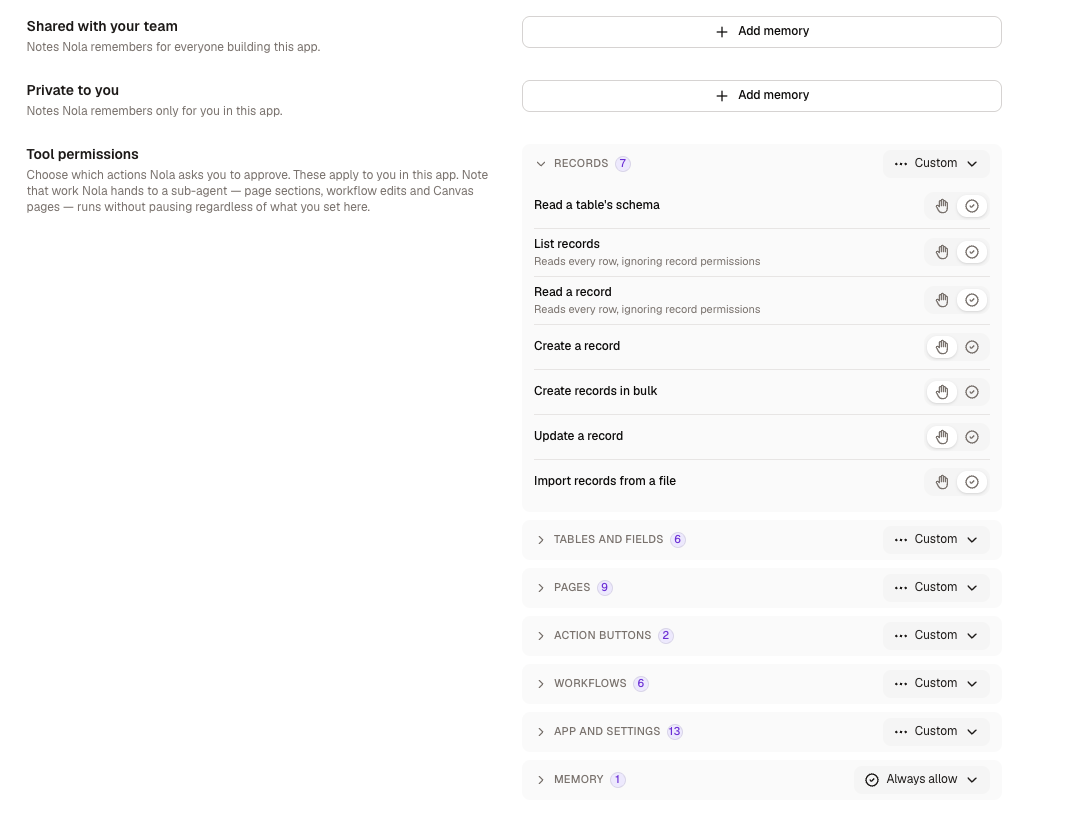
Mesh's settings include a Tool permissions page where you can decide up front how much Mesh can do on its own. These settings apply to you, in this app.
Actions are grouped into categories you can expand — Records, Tables and fields, Pages, Action buttons, Workflows, App and settings, and Memory. For each action you can choose:
Always ask — Mesh pauses for your approval every time.
Always allow — Mesh never pauses for it.
Until you set an action yourself, it follows Mesh's default — asking before changes and removals, and running reads without a prompt. You can set an entire category in one go, and any per-table, per-page, or per-workflow exceptions you've granted from an approval card appear here as badges you can remove at any time.
This lets you give Mesh a longer leash for routine work while still requiring a check on the things that matter most.
Mesh's Context
Mesh is context-aware, meaning she understands:
What app you're working on
What page you're looking at
What tables and fields you have
Where you are in the builder
What you've previously discussed in the conversation
This means you can have natural, flowing conversations without repeating context.
Example: You: "Create a Customers table" Mesh: [creates table] You: "Now add an Orders table linked to it" Mesh: [knows "it" refers to Customers and creates the link]
Point Mesh at a specific element
When you want Mesh to focus on one part of a page, select that element in the builder. The selected element is shown in the chat as context — so instead of describing which piece you mean, you can select it and simply say what you want changed.
Remembering across conversations
Within a chat, Mesh remembers what you've discussed. Beyond a single chat, she also keeps a longer-term memory of your preferences and app conventions, so she stays consistent from one conversation to the next.
Working across conversations
Your work with Mesh is organised into conversations, so you can keep separate threads for separate pieces of work:
Start a new conversation for a fresh task, to keep its context focused.
Switch between conversations from the conversation list and pick up where you left off — your history is kept.
Delete a conversation you no longer need.
Edit and resend a previous message to try a request a different way, without retyping it.
When to Use Mesh vs. Manual Building
Use Mesh When:
Setting up new data structures
Generating sample data
Creating workflows
Learning new features
You want to save time on repetitive tasks
Build Manually When:
Fine-tuning visual design
Making small tweaks to existing elements
You want precise control over every detail
Mesh can't yet do what you need her to
Getting Help
If you're not sure what Mesh can do, just ask:
"What can you help me with?"
"Show me examples of what you can do"
"Help me understand [feature name]"
Next Steps
Now that you know how to access and communicate with Mesh, learn more about what she can do:
What Mesh Can DoTips and Best PracticesLast updated
Was this helpful?