
Canvas components
Add a Canvas to an existing record page or blank page as a component, to give a standard page a bit of custom, dynamic functionality
A Canvas doesn't have to be a whole page. When a standard record page or blank page is almost right but you want one bespoke, dynamic section, you can add a Canvas to it as a Canvas component — a custom, Mesh-built block that sits alongside your normal components.
This gives you the best of both: keep the standard page you already have, and drop in custom functionality exactly where you need it — without rebuilding the whole page as a Canvas page.
How to add a Canvas component
You add a Canvas component by asking Mesh — there's nothing to drag in from a component menu. While you're on the page you want to add it to, describe what you need:
"Add a Canvas component to this page that generates a prefilled sign-up link for this customer."
"Add a section here that calculates this project's budget burn-down."
Mesh builds the component and places it on the page. Tell her where it should go if it matters — "put it at the top", "below the details" — and refine it from there.
Working with the current record
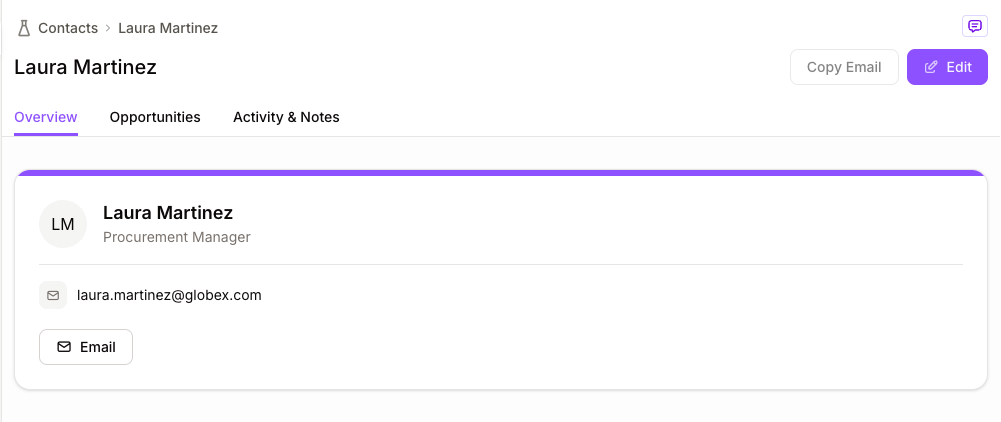
When you add a Canvas component to a record page, it automatically knows which record is being viewed. That means it can show and act on that record's data — making it ideal for record-specific tools and summaries.
For example, on a Customer record page you could add a Canvas component that generates an upgrade link prefilled with that customer's details, or on a Project record page one that shows a live budget summary for that project.
On a blank page or dashboard, a Canvas component works with your app's data like any Canvas — there's no single "current record", so you point it at the data it should use.
Editing a Canvas component
A Canvas component is edited exactly like any other Canvas — by chatting with Mesh, or by selecting an element on it and telling her what to change. See Editing a Canvas for the full flow.
What it can reuse, and what it can't
A Canvas component draws on the same platform capabilities as a Canvas page — your data, charts, your app's theme — and the same limits apply: the advanced components (Kanban, timelines, and the data grid) aren't available in a Canvas yet, and it uses credits like any Canvas work.
Visibility
A Canvas component follows the same component visibility rules as every other component on the page — show or hide it by user role or by page values. Unlike a Canvas page, a component doesn't have its own route or assigned spaces; it lives wherever you place it on the host page.
Next steps
Creating a CanvasEditing a CanvasLast updated
Was this helpful?